Bookkeeping
Reports
You can print a number of reports from Bookkeeping under
If you want to import or export different registers or SIE files, this is done under Settings - Import and export. You can also read more in the topic Import and export.
You can read more about each report below.
 Accounting transaction log
Shows what transactions that have been carried out, when they were carried out and by whom, for the selected financial year or period.
Aged analysis invoice report
The report shows unpaid invoices with a breakdown of how old the debts are for the overdue invoices. You can run the report for your
Balance sheet
The balance sheet gives you an overview of assets, liabilities and equity. Depending on what selection criteria you choose, you can view the account number, account designation, opening balance, change during the period, balance, balance for this period and closing balance.
The last line shows the net profit/loss. Preliminary balance sheet is shown if you have not locked the company's accounting for the selected financial year or period.
If there are any open accounting periods prior to the one you are printing, the balance sheet will be marked as preliminary. Read more about the locking of accounting periods and financial years in Financial year and OB settings.
Chart of accounts
The chart of accounts report lists the various accounts in numerical order. It also indicates the VAT codes and whether the accounts are active.
You can choose whether you want to include active and inactive accounts.
Fixed assets list
The detailed fixed assets list helps you reconcile the accounting of your asset accounts against your fixed assets. You select financial year or transaction date(s) and what fixed assets category you want to reconcile. The report shows the Cost of acquisition, Date of acquisition, Depreciation for period, Depreciation prior to selected period, Opening balance for period and Carrying amount.
Fixed assets list, detailed
The detailed fixed assets list helps you reconcile the accounting of your asset accounts against your fixed assets. You select which period you want to generate the report for and what fixed assets category you want to reconcile. The report shows the Date of acquisition, Cost of acquisition, Depreciation basis, Depreciable amount, Useful life (months), Depreciation prior to selected period, Depreciation for period, Accumulated depreciation, Carrying amount and Status.
Please note that if you have fixed assets for which you have specified previous depreciations, the content in the columns Depreciation prior to selected period and Depreciation for period of the report depends on what period you choose to run the report for.
Example
You have a fixed asset for which you have specified previous depreciations according to the below:
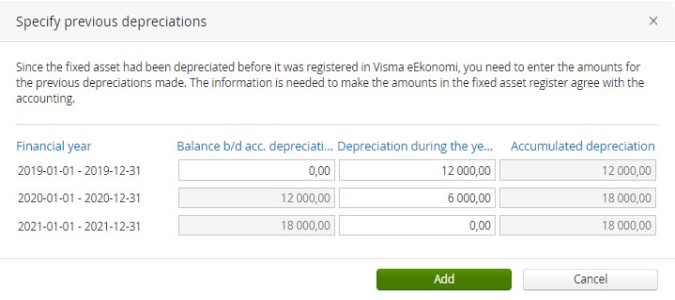
Depending on which period you choose to run the report for, the values will be accounted for like this:
| Report period | Depreciation prior to selected period | Depreciation for period |
|---|---|---|
| 2020-01-01- 2020-06-30 | 12 000 kronor | 6 000 kronor |
| 2020-06-01 - 2020-06-30 | 18 000 kronor | 0 kronor |
Since Bookkeeping does not know if the depreciations made during 2020 were made during June specifically, they will be accounted for in the period prior to the period selected for the report.
Journal entries list
Use this report if you want to print a list of journal entries. The journal entries list also gives you transaction information. You can sort the list by Journal series
If you want to print an individual journal entry you can sort the list by Journal entry number and enter the journal entry's sequence number in both of the Record no fields. You can also print the individual journal entry from the list under Accounting - Journal entries. Click on the specific entry you want to print. You then select Create PDF, open the PDF file and print it.
If there are any open accounting periods prior to the one you are printing, the journal entries list will be marked as preliminary. Read more about the locking of accounting periods and financial years in Financial year and OB settings.
Ledger
The ledger can be obtained for any period as well as for a specific project. The ledger lists the ledger accounts in order. You can view all transactions registered on each account for the requested financial year or period. The transaction date and number is shown for each transaction.
The selection criteria available, e.g specific accounts and date intervals
The Moms column shows the VAT on the amount if the journal entry line has a VAT code where the VAT can be calculated automatically.
If there are any open accounting periods prior to the one you are printing, the ledger will be marked as preliminary. Read more about the locking of accounting periods and financial years in Financial year and OB settings.
Ledger account balances list
The ledger account balances list shows a compilation of the balances of specified accounts for the set period. The list shows account number and name, opening balance, debit and credit balances, difference and closing balance. The ledger account balances list can e.g help you reconcile the posted balance of the cash account against the money in petty cash when you count it.
Period allocation report
Using this report, you can compare the balance of the allocation accounts against any planned period allocations. You select the dates and the accounts you performed allocations on. Keep in mind that the report only shows the allocations that have not yet been carried out. To view any prior, fully executed allocations, go to Accounting - Journal entries and select Transaction type - Period allocations.
Income statement
This report provides an overview of the revenue and costs for a financial year or a selected period of time. In addition, you can create a report comparing the results with those of the previous year.
If there are any open accounting periods prior to the one you are printing, the profit and loss report will be marked as preliminary. Read more about the locking of accounting periods and financial years in Financial year and OB settings.
Sales statistics monthly
This report is similar to the Sales statistics report, but focuses only on article statistics. You can filter on article numbers, article labels, projects, and cost units. Project and cost unit filters are only available if they are used. The report printout includes the columns: Article number, Article name, Statistics, and a column for each month selected.
-
If an article has not been included in at least one invoice in the period, the Amount and Total sales excl. VAT columns will be left empty.
-
If an article has been used on both a sales invoice and a credit note in the same period, the Amount and Total sales excl. VAT columns will show 0.00.
-
If an article has been included in a sales invoice one month and in a credit note in another month, you will see a positive amount for the first month and a negative amount for the other month in the Amount and Total sales excl. VAT columns.
Supplier ledger
With this option, you can print a supplier ledger that provides information about each supplier for a specific financial year or set period of time. The ledger gives you an overview of all the invoices from the supplier. If you only want information such as which purchase invoices that remain unpaid and when they are due you can instead print the report Unpaid purchase invoices list.
The date you have specified for the period determines what is shown in the report. If an invoice payment has been made after the selected period it will not be included in the report, and the closing balance shown is the debt present at the end of the period.
In the same way, the opening balance shows how much money that is owed for overdue invoices in the period before the report start date. This is a good indicator of whether there are old and unpaid purchase invoices.
Unpaid purchase invoices
This list shows your unpaid purchase invoices up until the selected date, sorted by due date.
VAT report
The VAT report is not found among the other printouts. If you want to print the VAT report go to Accounting - VAT report and click on the specific report you want to print. You then select Create PDF, open the PDF file and print it.
Related topics

|
Print reports |