Tax return & Annual report
Submit tax return to Skatteverket
When it is time to close the financial year and submit your company's information, you can do so easily in the submission view. Here you can get help checking that everything has been filled in correctly before you submit your tax return digitally or print it out for manual processing.
Before you submit your tax return, an automatic tax return check is performed to look for common errors or inconsistencies. If something needs to be corrected, an explanation will be displayed, and by clicking on Go to check you will be taken directly to the field that needs to be reviewed.
How to do it
You can choose between
Option 1: Automatic transfer via API (recommended)
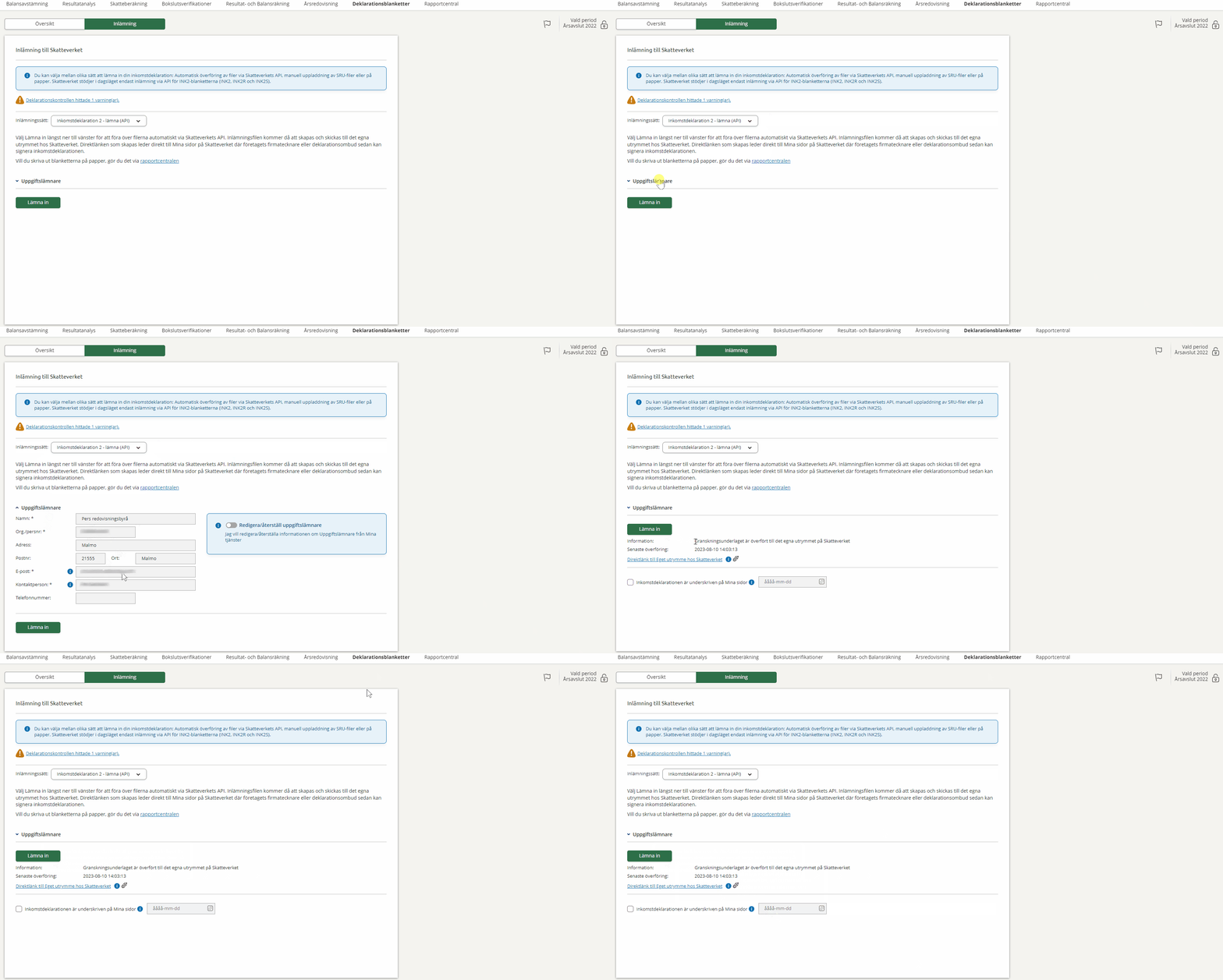
-
Go to Year-end closing - Tax forms - Submission.
-
Select Income statement - submit (API). as the submission method.
-
Check the details for the reporting agent. The information can be changed by activating Edit/restore information provider.
-
Click on Submit. The information is now transferred directly to Skatteverket.
-
For the declaration to be valid, it must be signed by an authorised person. Click on the link to Mina sidor at the Skatteverket that appears on the screen to log in and sign.
-
When you are done, you can check the box Tax return is signed on My pages at Skatteverket to keep track of the status.
If you experience problems with the transfer to Mina sidor on Skatteverket's website, it is most likely due to the unavailability of their service. However, if it occurs in other cases, it could be because you have entered negative amounts in regular input fields.
Please check the fields and correct them if necessary before trying again.
For current operation messages from Skatteverket, such as planned or unplanned incidents, see their Status page.
Option 2: File transfer via Skatteverket's service (SRU)
If you prefer to use traditional file transfer, you can download SRU files. You can easily switch between API and SRU on the submission page.
-
Choose whether you want to include the entire income tax return or just the appendices.
-
Click on Download info.sru and Download forms.sru. The files are saved on your computer.
-
Go to Skatteverket's page for file transfer and log in
-
Upload the two files you just saved.
Option 3: Print and send manually
If you prefer to submit your tax return by post, you can create a pdf file.
-
Open the Report Center.
-
Select the forms you want to send under Reports - Tax forms.
-
Select Create report.
-
Click on Print and select Download PDF.
-
Print the file, sign it and send it manually to Skatteverket.
Related topics
Skatteverkets service for file transfer
Skatteverkets service - Tax return
Frequently asked questions about INK2 submission at Skatteverket