Tax return & Annual report
Establish annual report
Under Year-end closing - , you will find everything you need to establish a complete annual report. The menu on the left shows the documents and notes it may contain.
- Click on each of the documents on the left and make your adjustments in the view on the right.
- Select Preview to generate a pdf file on the screen that you can browse through.
- Save the annual report in pdf- or Word format by selecting either Download pdf or Download docx under the printer icon in the top right corner.
A
Create it
Follow the structure in the left hand side menu under Year-end closing - and enter information about General business information, Multi-year review, Changes in equity, Allocation of profits and Notes.
B
Sign it
Fetch the names of the board members and the auditor from Bolagsverket directly from the Signatures page. Under the Submission and Digital sign pages, an automatic check will be run, checking the for any formal errors. In addition, on the Submission page you can verify that the data corresponds to the official data from Bolagsverket.
On the Submission and Digital sign pages, or anytime by clicking the Flag icon  , the annual report will be checked for common errors. If any, a message is displayed.

|
Warning |
An item that should be fixed. You should check these, but the annual report is possible to submit with warnings. You can mark the warnings as complete, which means they are hidden. To view warnings that have been marked as complete, you can switch on Show all, incl checks marked as done. Completed warnings are indicated by a green icon. |

|
Error | An item that must be fixed. Årsredovisningen is not possible to submit with errors. |
When clicked, the errors will be presented and you can navigate directly to the page where you can complete/update the information.
With the built-in integration with Sign, you manage the signing of the annual report and the annual general meeting protocol under Year-end closing - Annual report - Digital sign. The ones who are about to sign receive a notification via e-mail and can identify themselves with BankID before signing the document.
You have full control over the entire signing process and you see the ongoing status of each signatory. When all signatures are done, you will receive a confirmation via e-mail.
How much does the signing cost?
It costs SEK 20 per signature. For example, if you have an annual report that needs to be signed by four members, the cost of signing is SEK 80. If you choose to invite people to sign via SMS, each SMS costs SEK 3. No start-up or other fixed costs. You only pay for what you use.
C
Submit the annual report to Bolagsverket
Once signed, you upload a copy of the annual report for submission to Bolagsverket directly from the Submission page.
Any auditor's report is uploaded by the auditor independently from Tax return & Annual report. You can notify the auditor that the annual report has been submitted by entering an e-mail address in the Auditor's e-mail for receipt/notification field on the Submission page.
Note that the annual report is not submitted until the financial statements approval has been signed. This is done on Bolagsverkets service Lämna in årsredovisningen digitalt at https://arsredovisning.bolagsverket.se/lamna-in. Keep reading to see how.
What happens upon submission?
-
A copy (transcript) of the annual report is uploaded, together with the financial statements approval, to the dedicated space at the Swedish Companies Registration Office. There, the financial statements approval needs to be signed by a board member or the CEO. This is done in the Bolagsverkets service Lämna in årsredovisningen digitalt at https://arsredovisning.bolagsverket.se/lamna-in.
-
If an auditor's report is to be filed, the auditor upload it to the same area.
Årsredovisningen is kept at Bolagsverket for 21 days and the financial statements approval must be signed during that period. Reminders are sent after 3 and 18 days. If it's not signed during this period, the annual report must be uploaded again. Note that it's only the financial statements approval that needs to be signed. The other signatures should already be included in the annual report.
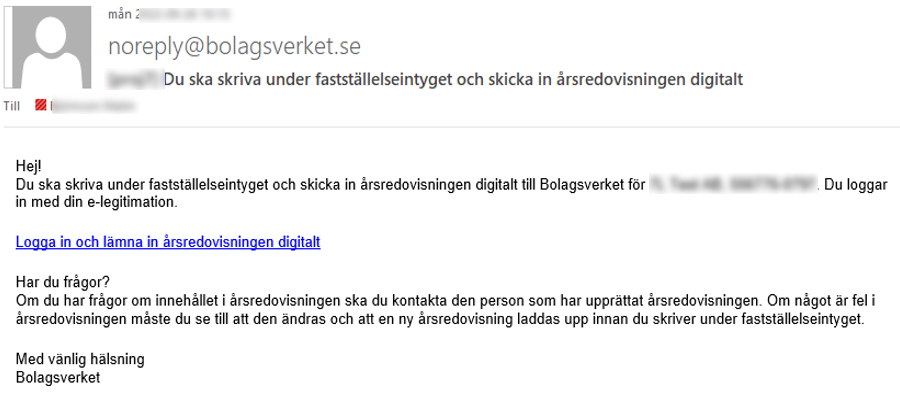
Bolagsverket will automatically send a mail to the e-mail addresses you have entered on the Submission page. The mail looks slightly different if the annual report includes an auditor's report.
-
The signatory clicks the link in the mail and log in with his/her BankID.
If an auditor's report should be included, but is not yet uploaded, a message will be displayed. It's recommended to wait with the signing until it has been uploaded.
It's possible to submit the annual report without the auditor's report, but if you want to add it later, the whole annual report needs to be uploaded again.
-
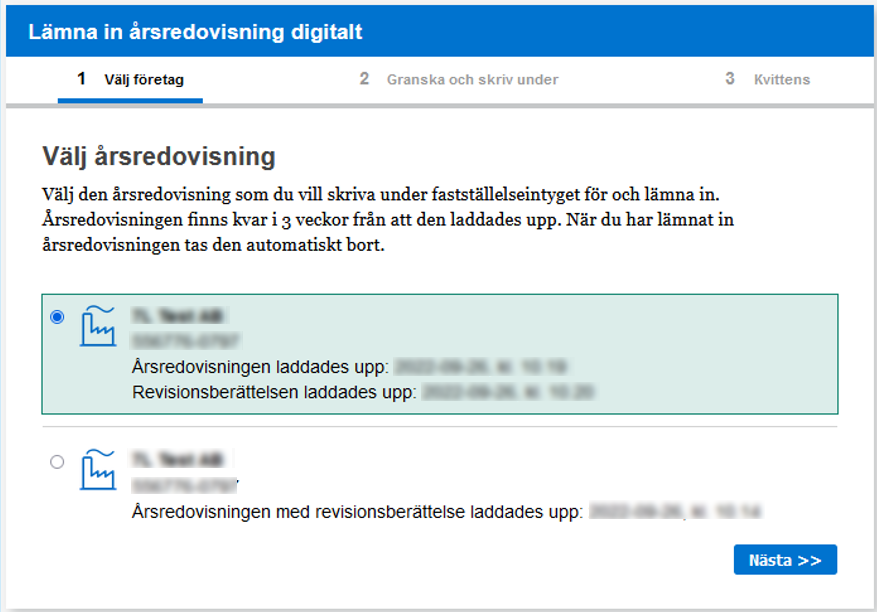
The signatory selects the annual report to sign and selects Next.
-
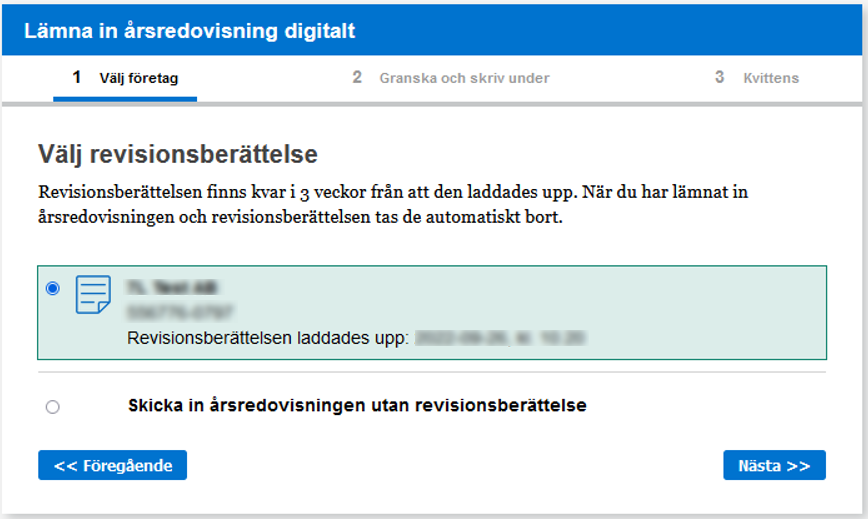
The signatory selects the auditor's report (if any) and selects Next.
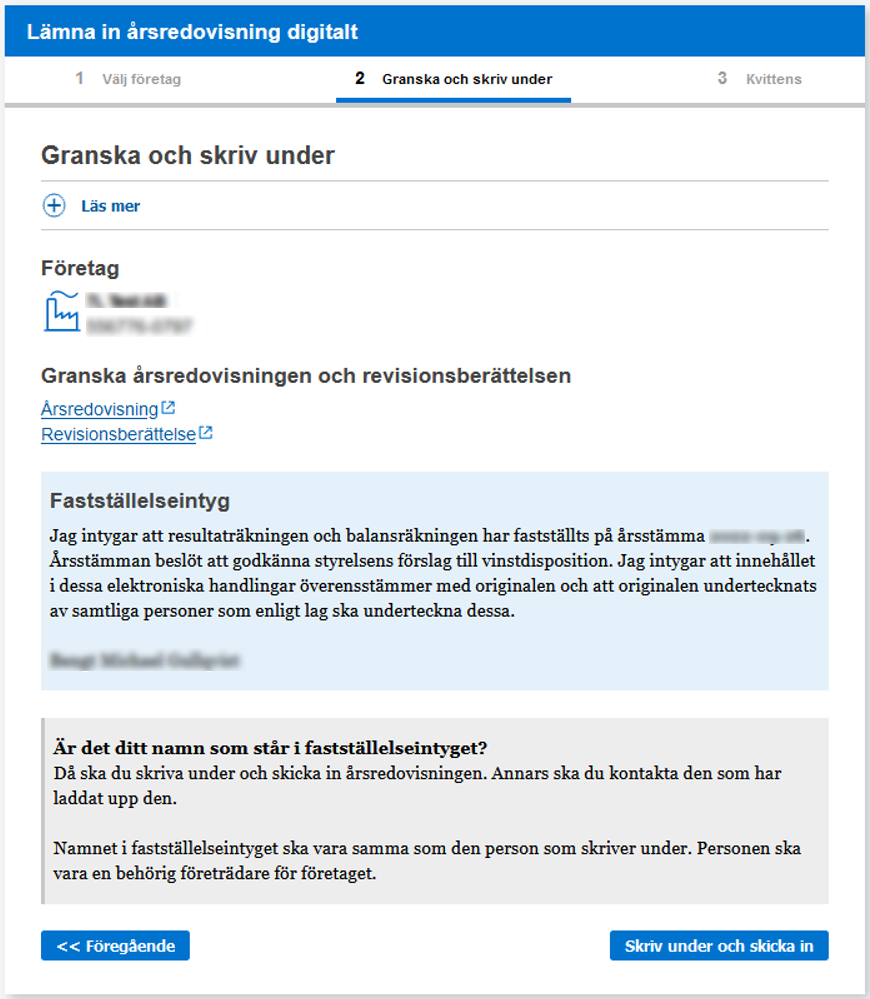
The last step is a review of what will be signed.
Make sure to review the annual report and any auditor's report by clicking their corresponding links.
-
When everything is reviewed and OK, press Sign and Submit.
-
Follow the instructions to sign.
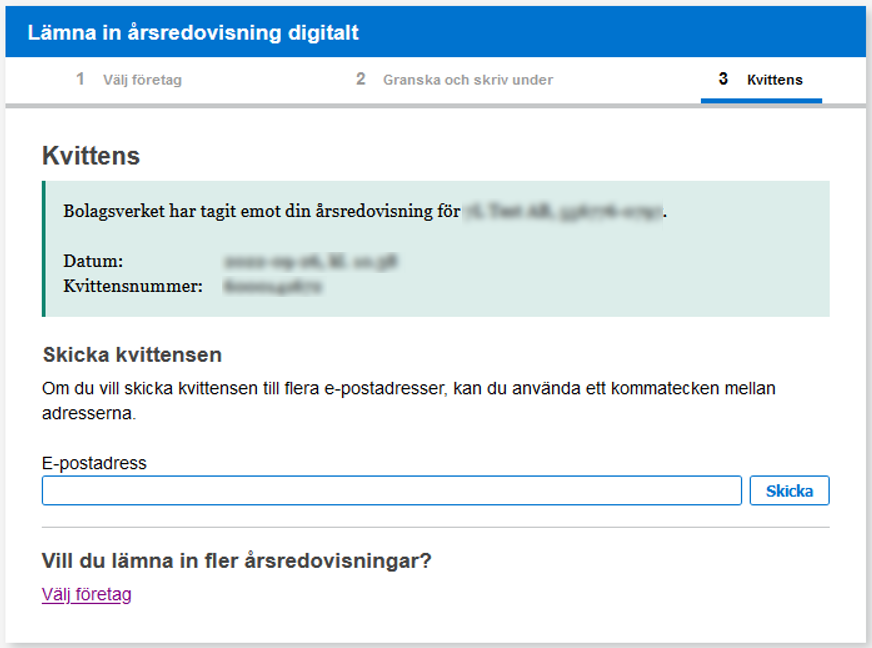
When the financial statements approval is signed and the documents are received at Bolagsverket, a receipt is displayed. Here, it's also possible to send a copy of the receipt via e-mail
Even though we don't recommend it, you can also print and manage the process manually.
Mark complete to keep track!
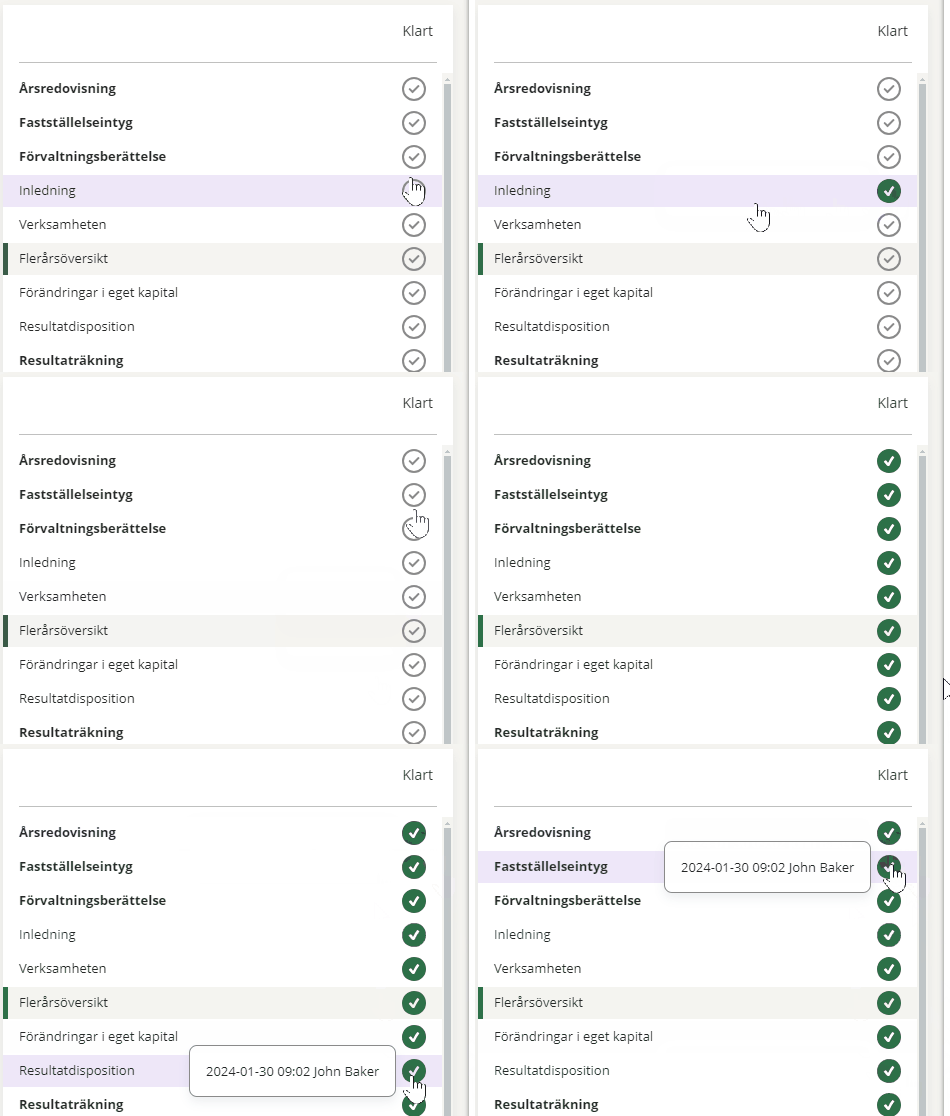
When a document is completed, you mark it as complete by clicking on the status symbol in the column Done in the view on the left. The status change will be indicated with your name and a time stamp and no further changes can be made
You can cancel the status change by clicking on the tick again.
If you have checked the box and then any of the values change, the check mark changes colour from green to orange. Go through and check the updated values and approve again.
Click on the image below to see what it looks like:
- When you mark tax forms as complete, the Date when the form was filled in field is also filled with today's date. This only matters if you submit the tax form on paper/pdf. If you submit the tax form by API or sru file, the date when the file is created is used.
View linked accounts
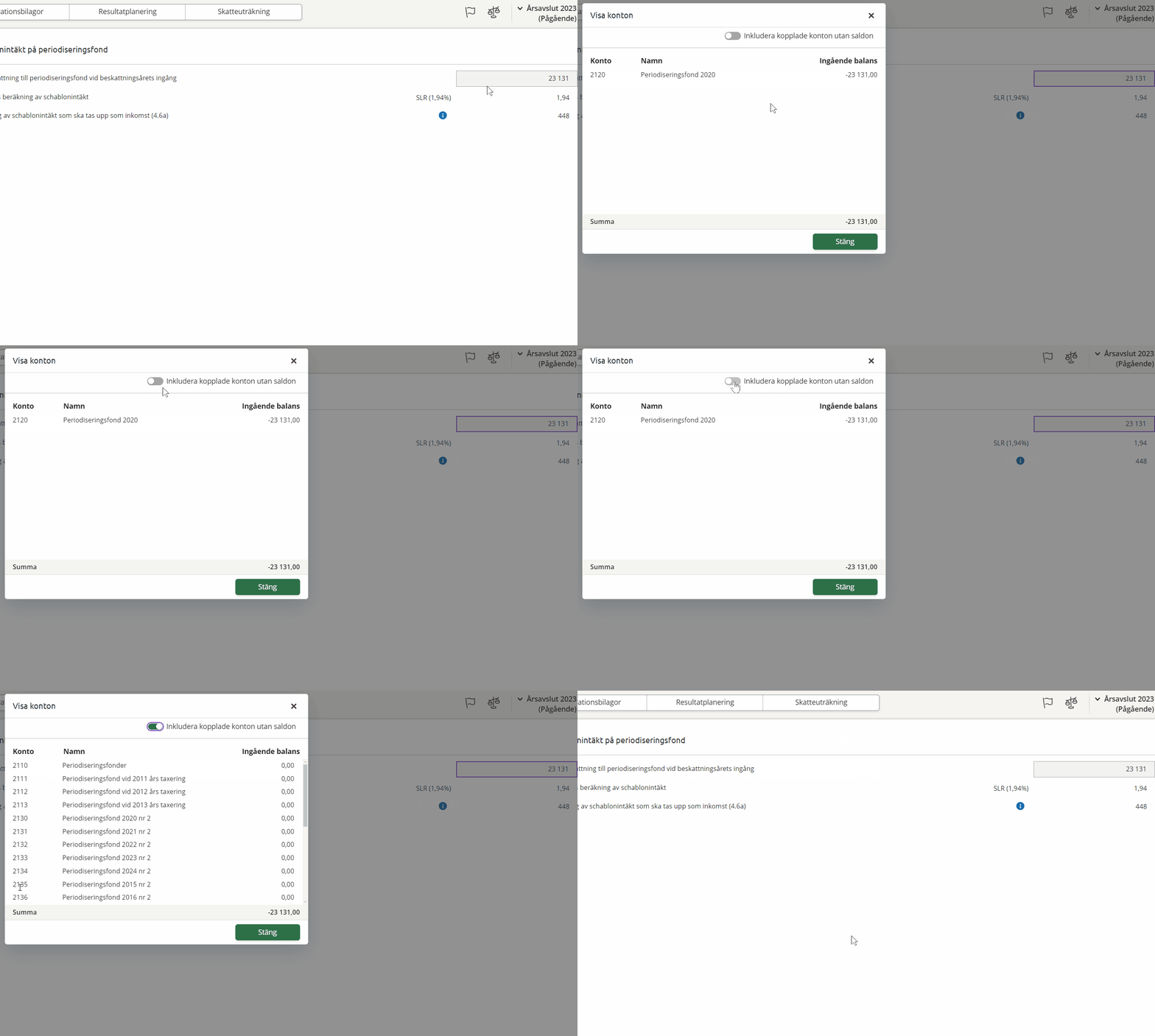
Some grey fields contain values linked to other accounts at the reference account level. These links are managed under Maintenance - Chart of Accounts.
To view the linked accounts, hover over the field and select Show accounts from the menu that appears. If there are mapped accounts without balances, you can include those as well by marking the checkbox Include mapped accounts without balances in the dialogue box that opens. Click on the image below to see what it looks like:
Read more about reference accounts, chart of accounts and how to change accounts in the topic Chart of accounts.
Date order for the annual report
| 1 | Financial year ends | |
| 2 | The content is determined in Årsredovisningen. |
Content determined is set on the Signatures page. This is the date when the annual report received its final content and was ready to be signed. For limited companies with a board of directors, it is usually the date on which the board decided on the annual report. It may also be another day when those responsible agreed on the content. |
| 3 | Årsredovisningen is signed |
The date when the board and possibly the CEO decide to present the annual report. If it's signed by several people at different times, each signature is stated with the respective date on the document Signatures. This applies regardless of whether it is digital or physical signatures. |
| 4 |
Date for Auditor's endorsement |
The date on which the auditor's report was submitted. Only relevant if the company has an auditor. |
| 5 |
Date for Annual general meeting |
The meeting shall be held within six months from the end of the financial year. This date is included in the Financial statements approval. |
| 6 |
Date for signing of the financial statements approval |
When submitting on paper, enter the date on which the financial statement was signed. In case of digital submission, Bolagsverket sends out the financial statement for digital signing. |
| 7 |
Deadline for submission of the annual report to Bolagsverket |
Årsredovisningen must be submitted no later than 7 months after the financial year ended and no later than 1 month after the Annual general meeting. |
Related topics
Warnings and errors when checking the annual report
Vägledning till K2 - Årsredovisning i mindre företag (BFNAR 2016:10)